
Use these Hosted Voice instructions to route callers to the most appropriate agents on your team. To see all auto-attendants on your account navigate from Business Cloud to Auto Attendant.
Status definitions
- Incomplete: There are open routes that need to be closed before the auto-attendant can be launched.
- Valid/Ready to Activate: All routes are closed, and the auto-attendant is ready for activation.
- Activated: The auto-attendant has been launched and it can now be assigned to a phone number.
- Linked: A phone number is linked and this auto-attendant is live.
Tools
Hover over an auto-attendant to see tools on the right.
 Delete: Permanently delete this auto-attendant. This cannot be undone. Before deleting an auto-attendant, it's a good idea to redirect the phone number, so calls aren't sent to an attendant that no longer exists.
 Duplicate: Make a copy of an auto-attendant so you can make changes.
  Launch: On a valid auto-attendant, click Launch to make it available as a destination in the Phone Number menu. Then go to Phone Numbers > Edit to assign the number to this active auto-attendant.
 Deactivate: Deactivate the auto-attendant. Activated status will be downgraded to Valid, and Linked status will be downgraded to Activated.
 Edit: Make changes to an inactive auto-attendant in the builder. Active auto-attendants cannot be edited.
Adding auto-attendants
The auto-attendant editor lays out your call routes in clear columns and rows so you can see exactly what you're building and how it all fits together. You can build and keep as many auto-attendants as you need. Changes are saved in real time, so you can close the builder at any time and finish it later.
For best results, use Chrome of Firefox. You may need to allow pop-ups.
Create a new auto-attendant
- Click + Add Auto-Attendant. The builder opens in a new window.
- Enter a name for the auto-attendant.
- Click the
 Add icon to select and configure the route. When a route is selected its editor appears on the right. See below for route options.
 - Activate: When there aren't any open routes tied to it, the auto-attendant's status changes to Ready to Activate. Click
 to activate it.
 - Click Assign Phone Number. If the auto-attendant is active, but you don't see the Assign Phone Number link (or Business Cloud > Phone Numbers), contact business support for assistance.
- In the list of phone numbers, locate the number you want to assign to this auto-attendant and click Edit.
- In the drop-down for Phone Number Rings To select the active auto-attendant and click Save.
-
The auto-attendant's status changes to Live and calls to the assigned number routed through it.
Route options
To configure a call-flow route, click the primary card to open the editor. After saving, the route will appear in the auto-attendant builder.
Routes with an Add icon are incomplete and require additional configuration.
- Schedule: Routes the caller based on defined windows of time
- Menu: Typically plays a recorded readout of options and waits for the caller's touch-tone input to determine routing
- Message: Plays a recorded sound clip
- Group: Routes caller to a group of users (not devices), supports call queuing
- User: Routes call to a specific user's device or voicemail and follows that user's call handling settings
- Directory: Allows the caller to dial a user in the directory.
- Hang Up: Ends the call
- Reference: Redirects the caller to another route in the auto-attendant. For example, if a call is routed to a user who doesn't answer, this allows the caller to return to the main menu and start over.
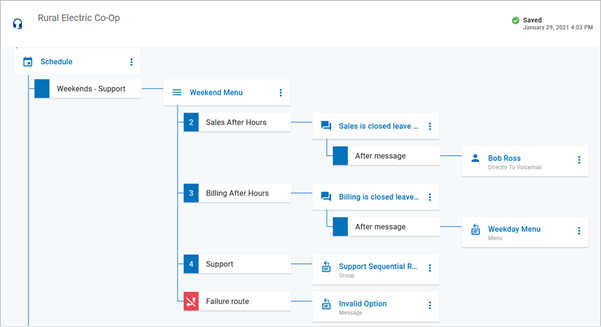
Here's an example of a completed route:
Editing auto-attendants
To prevent disruptions to incoming calls, active auto-attendants cannot be edited. To review an active auto-attendant's setup, click  to open it in View Only mode. If you need to make changes to an active auto-attendant, use one of the following options.
Option 1: Duplicate, Edit, Switch
- On the Auto-Attendant page, locate the one you want to modify and click
 Duplicate.
 - Click Edit
 to modify the duplicate.
 - Return to the Auto-Attendant page and Activate
 the duplicate auto-attendant.
 - When you're ready to launch the new version, locate the phone number assigned to the original auto-attendant and change its destination to the new auto-attendant.
- On the Auto-Attendant page, locate the original, and click
 Deactivate.
 - Delete or rename the old version to prevent confusion.
Option 2: Deactivate, Edit, Reactivate
To avoid breaking an active call flow, only use this option outside of the auto-attendant's scheduled activity.
- On the Phone Numbers page locate the phone number assigned to the auto-attendant you want to modify. Change the phone number destination to None or another viable option (like a temporary auto-attendant).
- Open the Auto-Attendant page and locate the one you want to modify. Click Deactivate.
- Edit to modify the deactivated auto-attendant.
- On the Auto-Attendant page, locate the auto-attendant you just modified and click Activate.
- Click Assign Phone Number.
- Select the phone number you want to assign. Change the the destination back to the auto-attendant.
- Click Save. Calls to that phone number will now be directed through the modified auto-attendant.